Keep your profile current so your team recognizes you, and customize TimeWise's appearance to suit your working environment — whether you prefer a bright or dark interface.
Update Your Profile
1
Tap the Settings tab at the bottom of the screen.
2
Tap My Profile to open the profile editor.
3
Tap the profile photo area to add or change your photo — choose from your library or take a new photo.
4
Update your display name, email address, and any other contact details.
5
Tap Save to confirm your changes.
Screenshot: Settings tab and profile editing screen
Customize Appearance
1
In the Settings tab, tap Appearance.
2
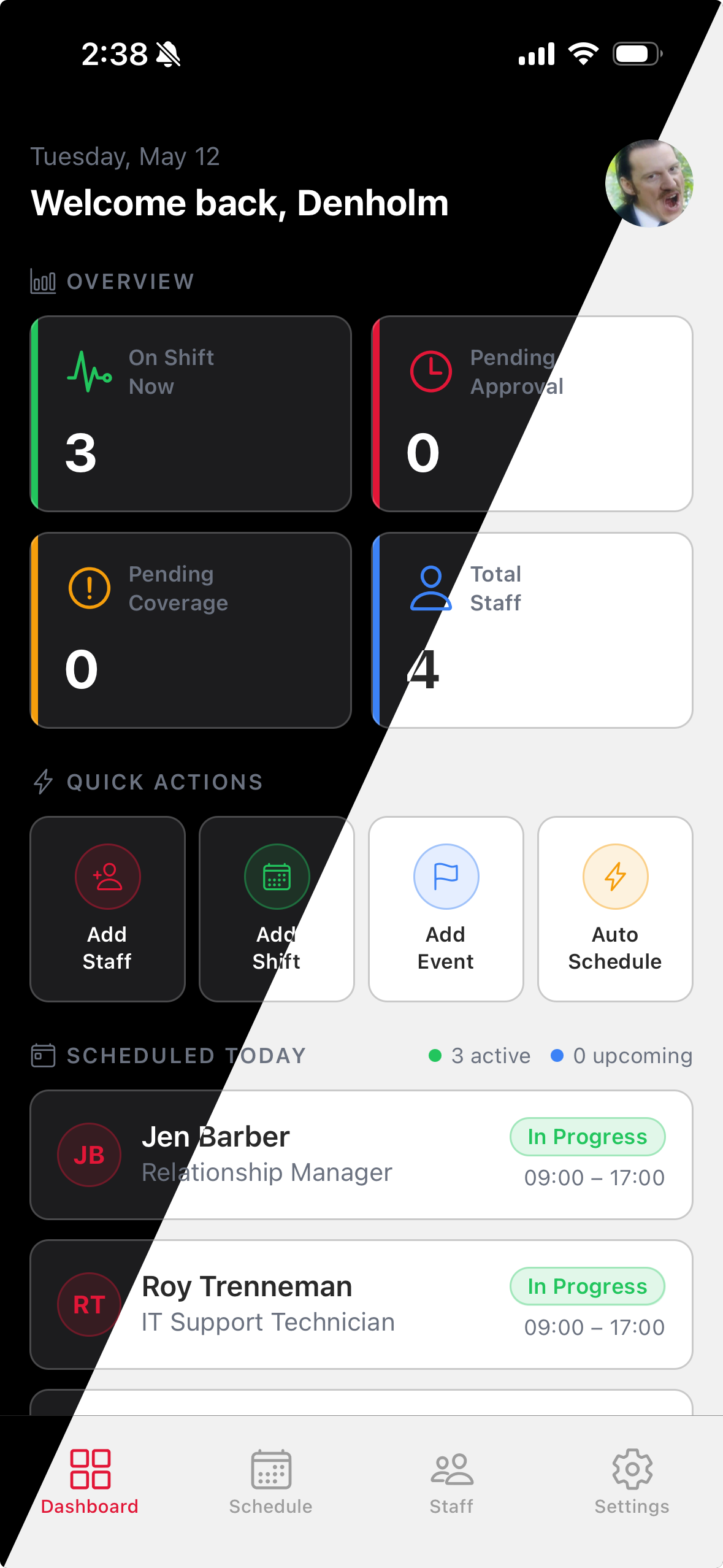
Select Light, Dark, or System to match your preference or your device's current theme.
3
Your choice is applied instantly across the entire app and saved automatically.
Tip: Adding a profile photo helps your employees recognize you in the app — especially useful when they first join your workspace.