As a TimeWise manager, you're in control of your entire team's schedule. This guide walks you through the first steps to get your private workspace set up and ready for your staff.
Sign Up as a Manager
Download TimeWise from the App Store (iPhone) or Google Play (Android) and open the app.
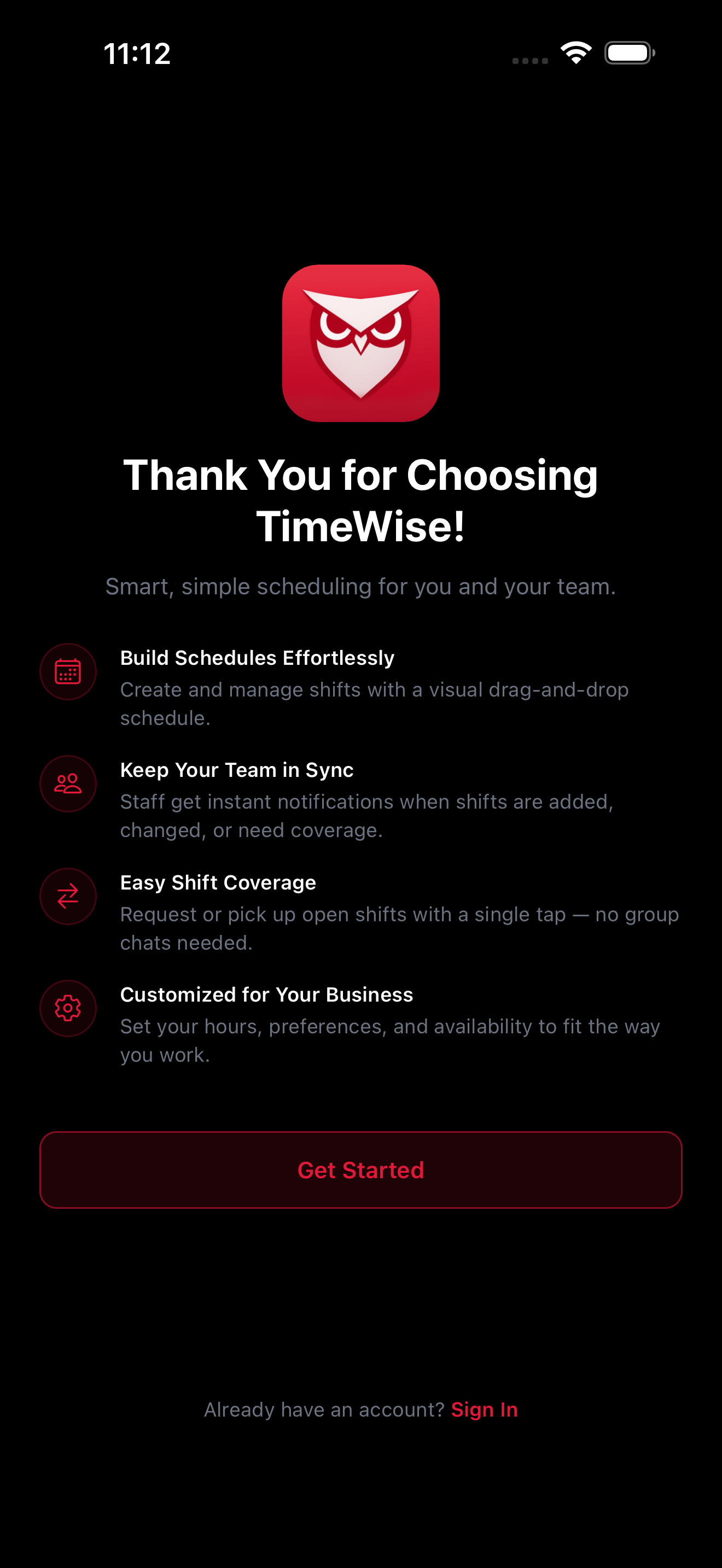
On the welcome screen, tap I'm a Manager.
Create your account with an email and password, or sign in with Apple or Google for faster setup.
Create Your Company Workspace
When prompted during onboarding, enter your business name. This becomes the name of your private workspace.
TimeWise creates a private workspace for your organization. Only employees you explicitly invite can join — your workspace cannot be found through search.
You can update your company name and other details at any time from the Settings tab.
Explore Your Manager Dashboard
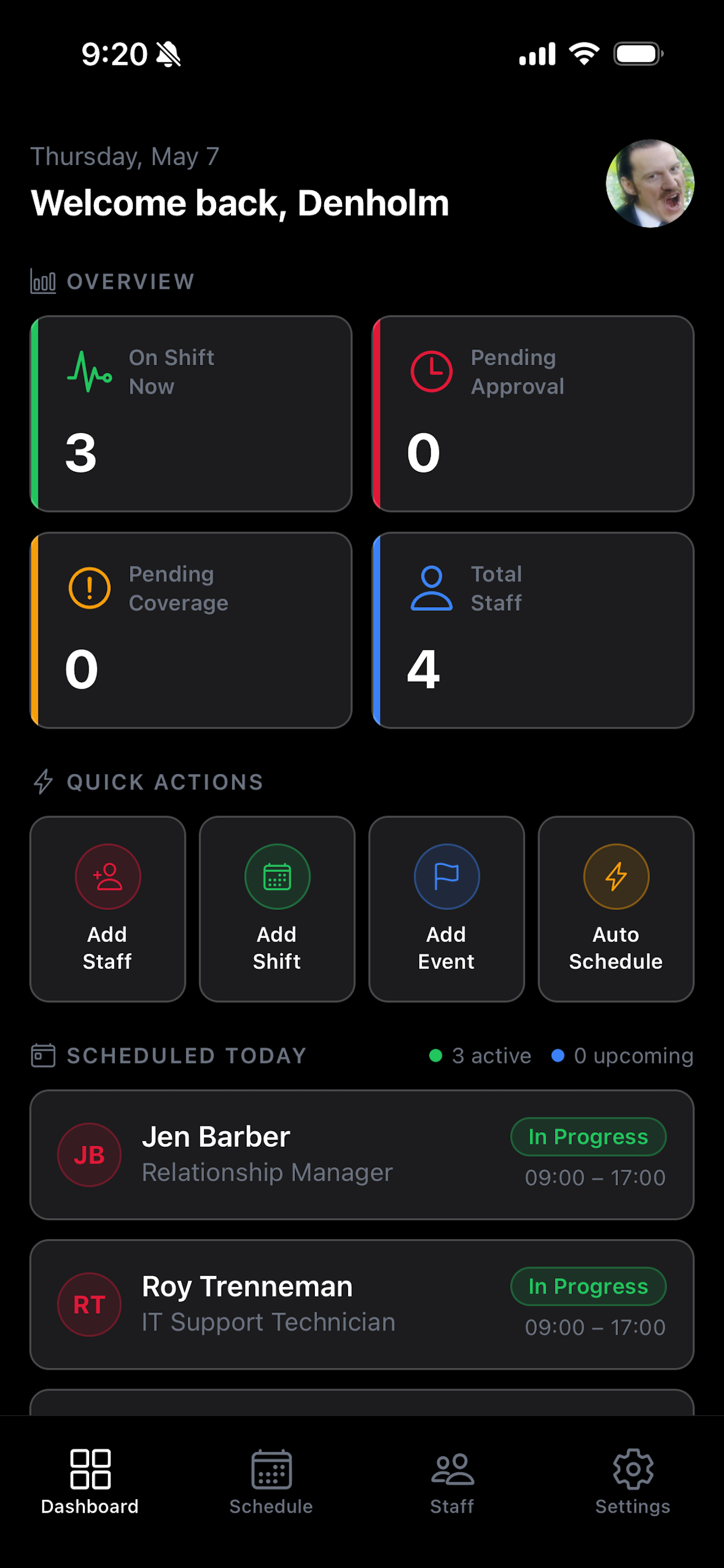
After setup, you'll land on your Manager Dashboard. This shows upcoming shifts, recent coverage requests, and team activity at a glance.
Use the bottom tab bar to navigate between Dashboard, Staff, Schedule, and Settings.
You're now ready to add your team. See the Inviting Your Team guide for next steps.