The Staff tab is your team command center. From here you can view profiles, update employee details, review their upcoming schedules, and manage who has access to your workspace.
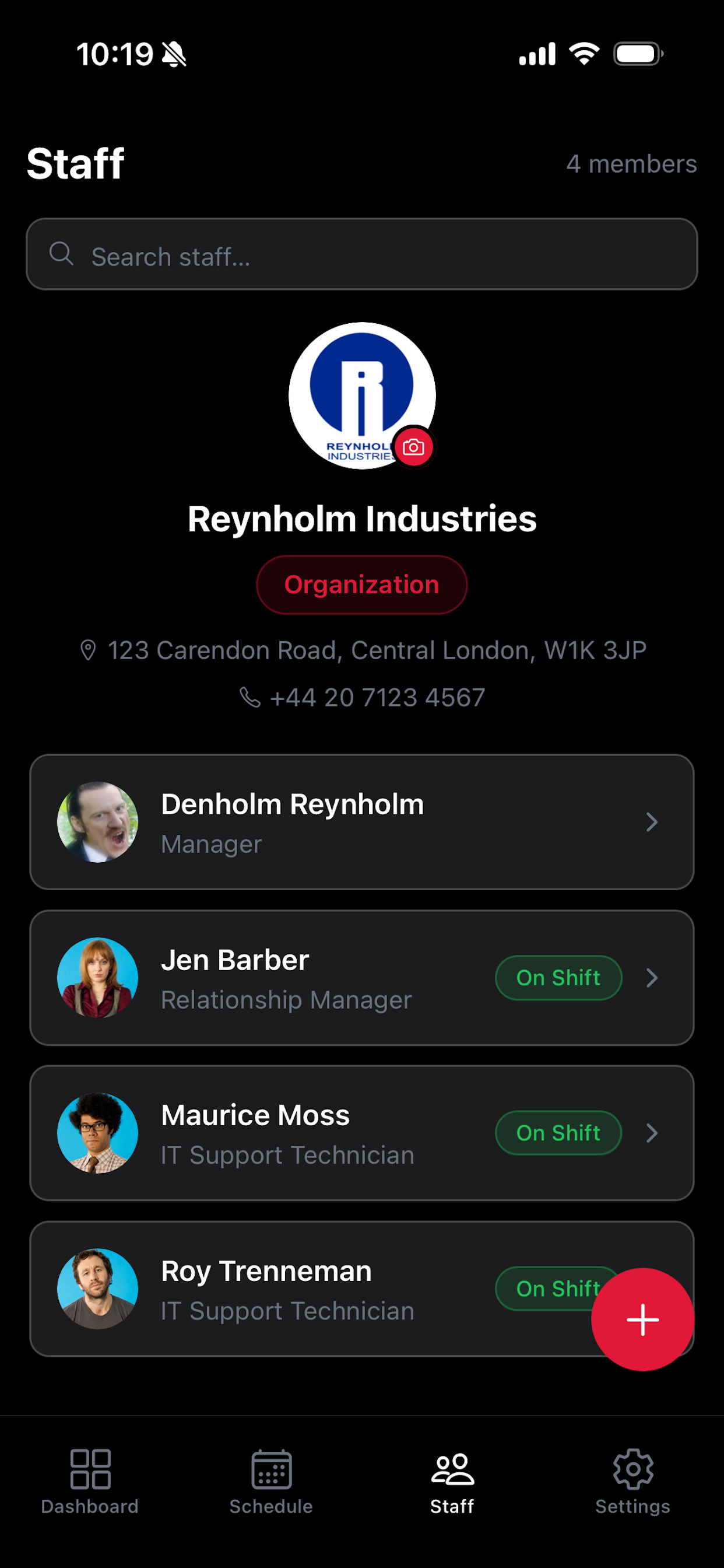
View Your Team
Tap the Staff tab at the bottom of the screen.
Your full staff list is displayed, showing each member's name, role, and recent shift information.
View and Edit a Staff Member
Tap any team member in the list to open their profile.
The profile shows their contact information, role, and upcoming schedule.
Tap Edit to update their name, role, phone number, or default shift times.
Tap Save to confirm any changes.
Remove a Staff Member
Open the staff member's profile from the Staff tab.
Scroll to the bottom and tap Remove from Team.
Confirm the removal. This revokes their access to your workspace — they will no longer be able to view your schedule or receive shift notifications.
Plan Limits
Your current subscription plan determines how many staff members you can add to your workspace.
If you've reached your limit, a prompt will appear when you try to add more team members.
Upgrade your plan from Settings → Plan to increase your staff capacity.