TimeWise uses personal invite codes to keep your workspace secure. Each employee gets their own unique code — this guide shows you how to add team members and share their codes so they can join your workspace.
Add a New Team Member
Tap the Staff tab at the bottom of the screen.
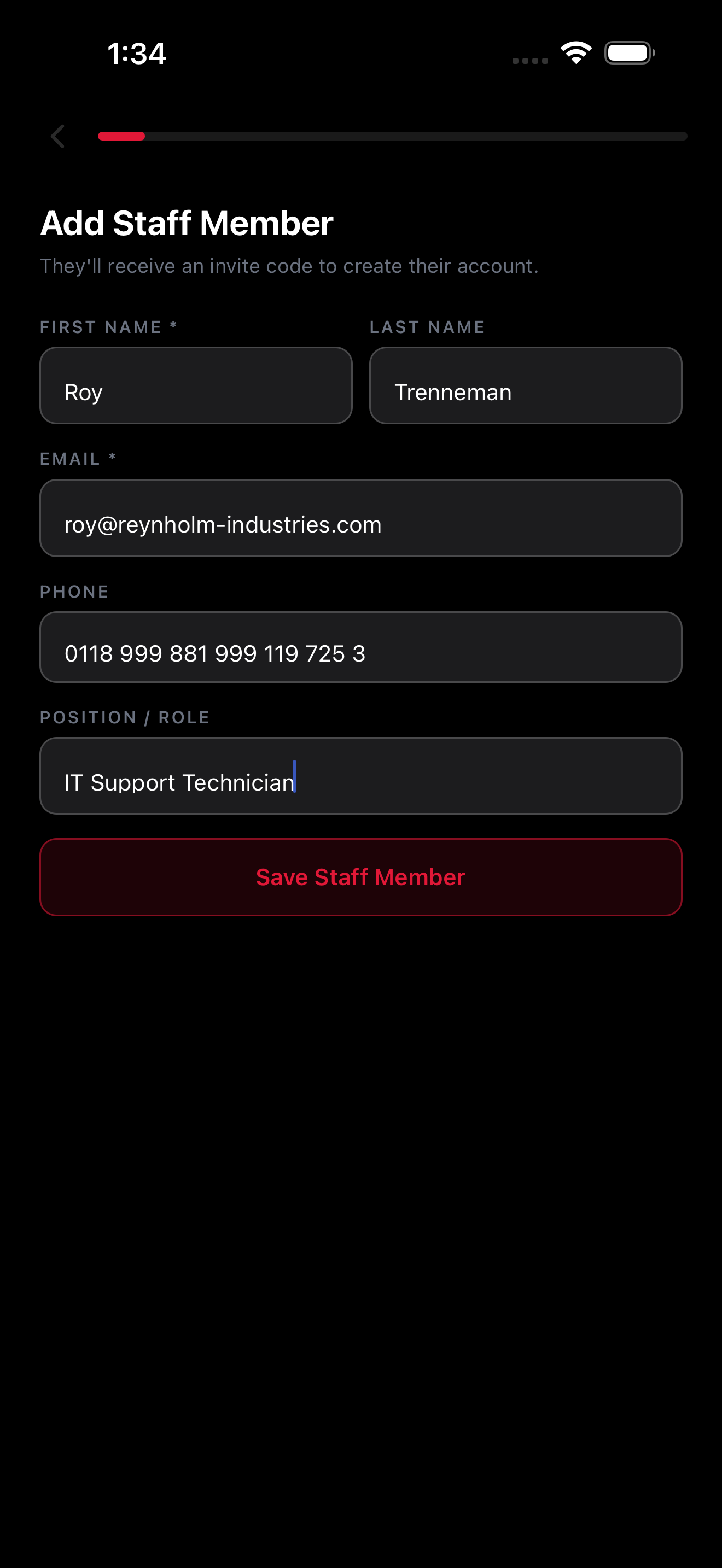
Tap the + button in the top-right corner to open the Add Staff form.
Enter the employee's name and any other requested details, then tap Save.
Share the Invite Code
After creating the staff member, TimeWise automatically generates a unique invite code for that employee.
Tap the code to copy it, or use the Share button to send it via text message, email, or any messaging app.
Instruct your employee to download TimeWise, tap I'm an Employee on the welcome screen, and enter the code to join your workspace.
Track and Resend Codes
Tap any staff member from the Staff tab to view their profile.
If the employee hasn't accepted yet, their invite code is still visible in their profile.
Tap to copy or resend the code if needed — for example, if the employee lost it or the message never arrived.