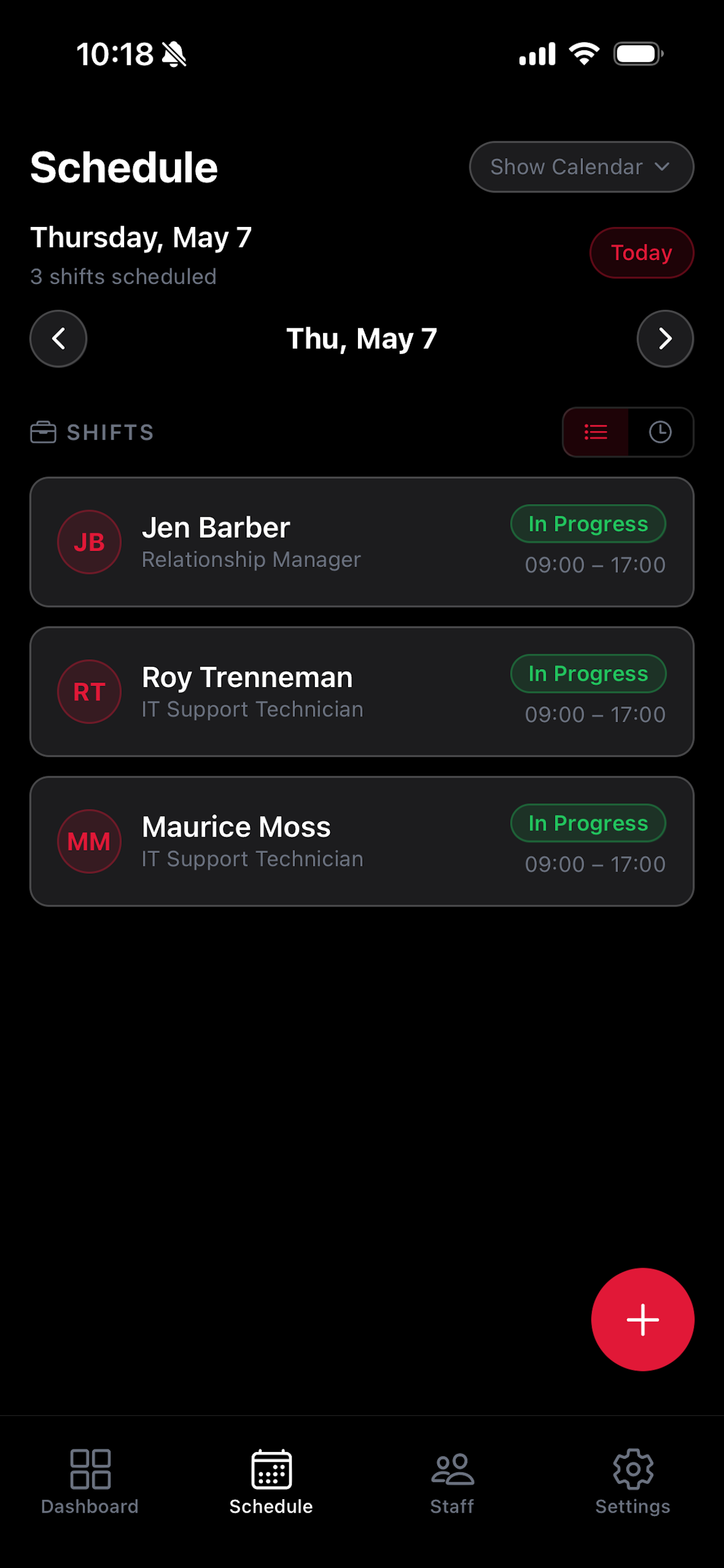
The Auto-Scheduler is a Pro-exclusive feature that takes the guesswork out of scheduling. Set your preferences once and let TimeWise generate a full week's schedule for your team in seconds — then review, adjust, and publish.
Access the Auto-Scheduler
Open the Schedule tab at the bottom of the screen.
Tap Auto-Schedule. This feature requires an active Pro subscription.
If you're not currently on Pro, a prompt will appear with upgrade options. See Settings → Plan to upgrade.
Set Your Preferences
Choose the week you want to generate a schedule for.
Set the number of shifts per employee per week — for example, 4 or 5 shifts.
Set your preferred working hours — the start and end times for each shift block.
Select which days of the week your business operates.
Add any blackout dates — holidays, closures, or days you don't want shifts scheduled.
Generate the Schedule
Tap Generate Schedule when your preferences are set.
TimeWise will analyze your staff roster and preferences to create a full draft schedule for the selected week.
The draft schedule is shown in the calendar view in draft state — no employees are notified yet until you publish.
Review and Adjust
Review the draft schedule in the calendar view. Check that hours are balanced and coverage is adequate for each day.
Tap any shift to edit, move, or delete it manually. All standard shift editing tools are available in draft mode.
Make any final adjustments until the schedule reflects exactly what you need.
Publish the Schedule
Tap Publish Schedule when you're satisfied with the draft.
All employees will receive push notifications about their new shifts as soon as the schedule is published.
The schedule is now live and visible to your entire team in their My Shifts tabs.