Life happens. TimeWise makes it easy to request coverage for any shift you can't make — your manager will be notified immediately and can approve or decline directly from their device.
Find the Shift
Open the My Shifts tab at the bottom of the screen.
Locate the shift you need covered and tap it to open the shift detail view.
Submit a Coverage Request
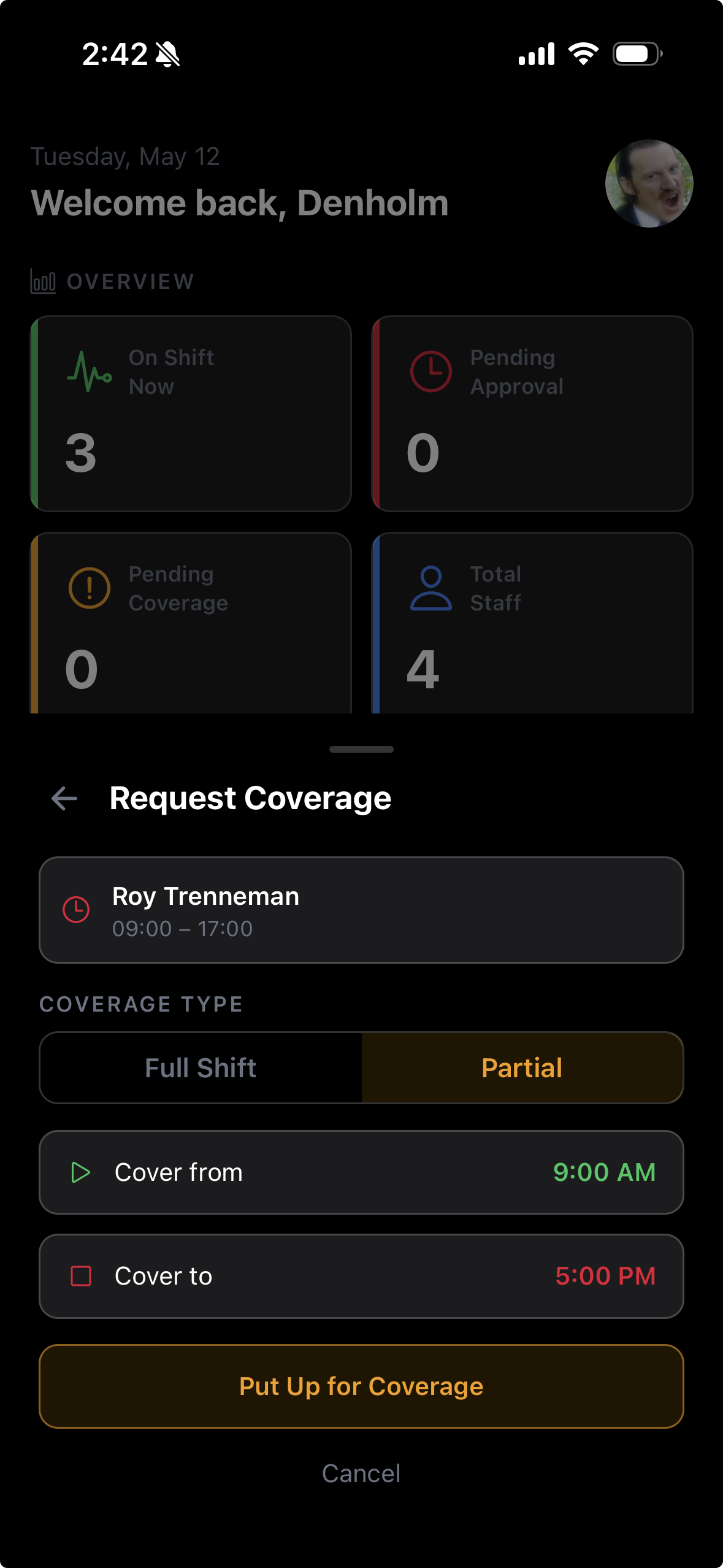
Tap the Request Coverage button in the shift detail view.
Optionally add a note for your manager explaining the situation — for example, a personal appointment or illness.
Tap Submit to send the request. Your manager will receive a push notification immediately.
Wait for a Decision
Your manager will review the request and approve or deny it from their own device.
You'll receive a push notification when your manager makes a decision — approval or denial.
If approved, the shift may be opened for other employees to pick up or manually reassigned by your manager. Your schedule will update accordingly.