When a shift becomes available — because a colleague requested coverage or your manager posted an open slot — you can pick it up directly from the app. This guide walks you through the process from notification to confirmation.
Get Notified of Open Shifts
Make sure push notifications are enabled both on your device and in the TimeWise Settings tab. See the Push Notifications guide for setup steps.
When a new open shift is posted, you'll receive a push notification alerting you that a shift is available to claim.
View Available Shifts
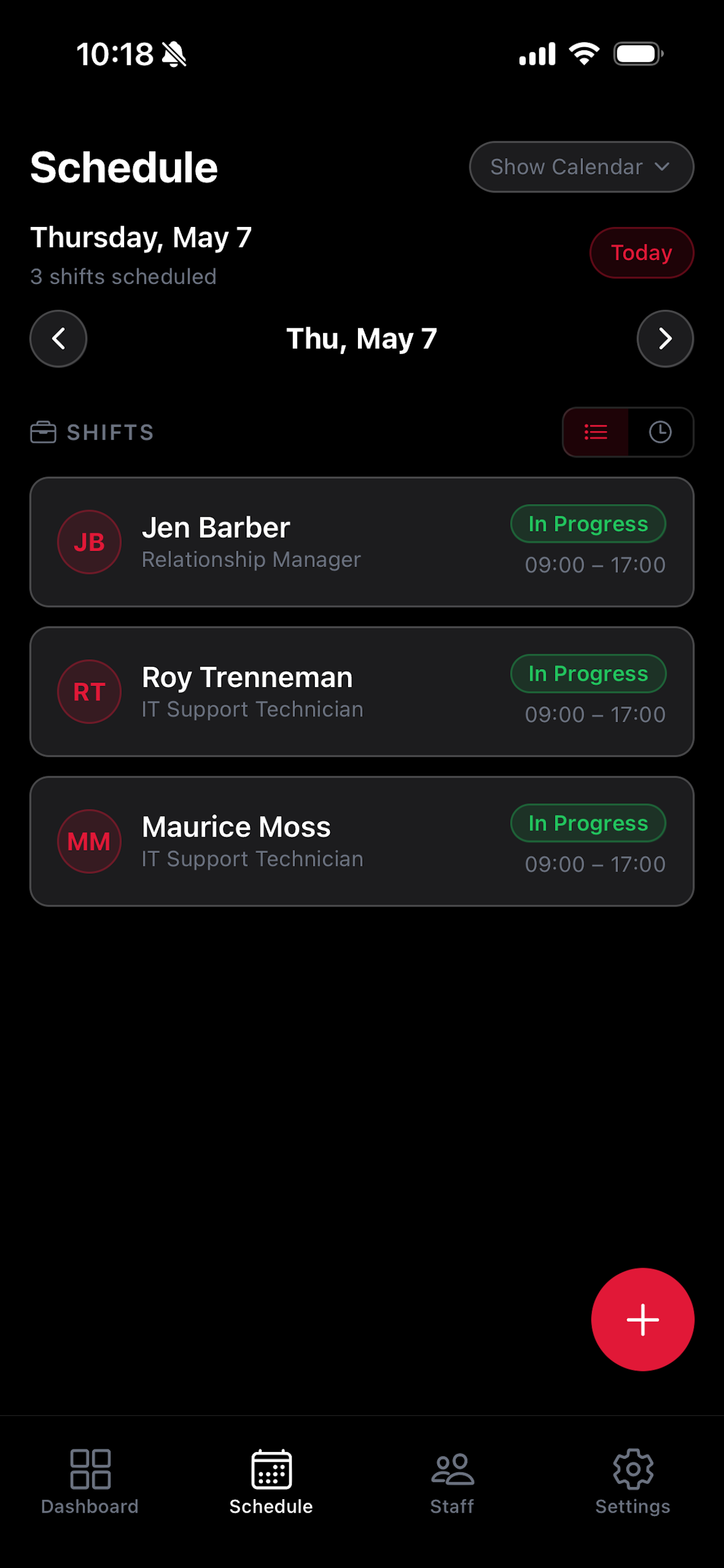
Open the Schedule tab at the bottom of the screen.
Open shifts are visually marked to distinguish them from assigned shifts — look for the available shift indicator.
Tap an open shift to see its full details: role, time, and any notes added by your manager.
Claim the Shift
From the open shift's detail view, tap Pick Up Shift.
Confirm your selection when prompted.
Your manager will be notified that you've claimed the shift. Once confirmed, the shift appears on your My Shifts tab.