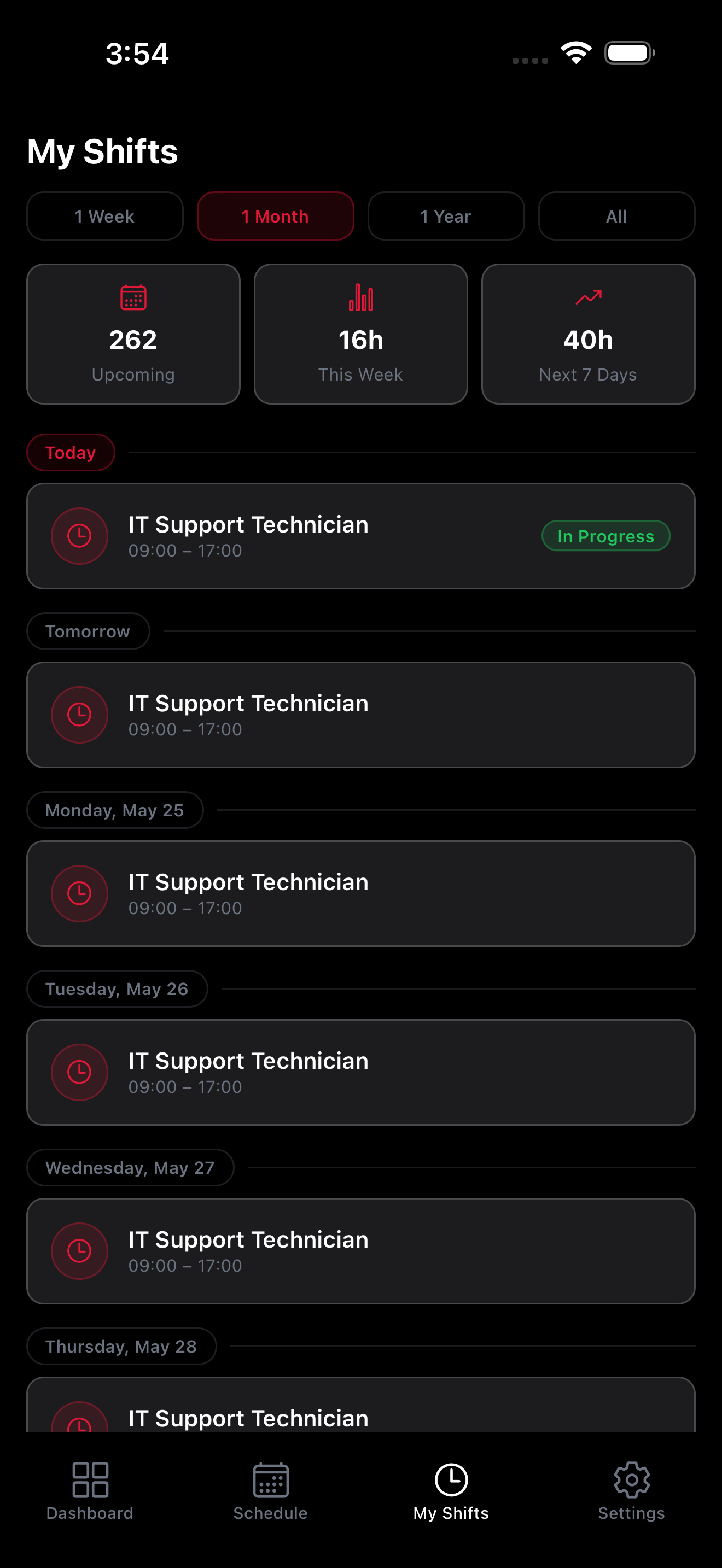
Whether you're joining a new team or using TimeWise for the first time, this guide walks you through everything you need to go from download to dashboard in just a few minutes.
Step 1 — Download & Install TimeWise
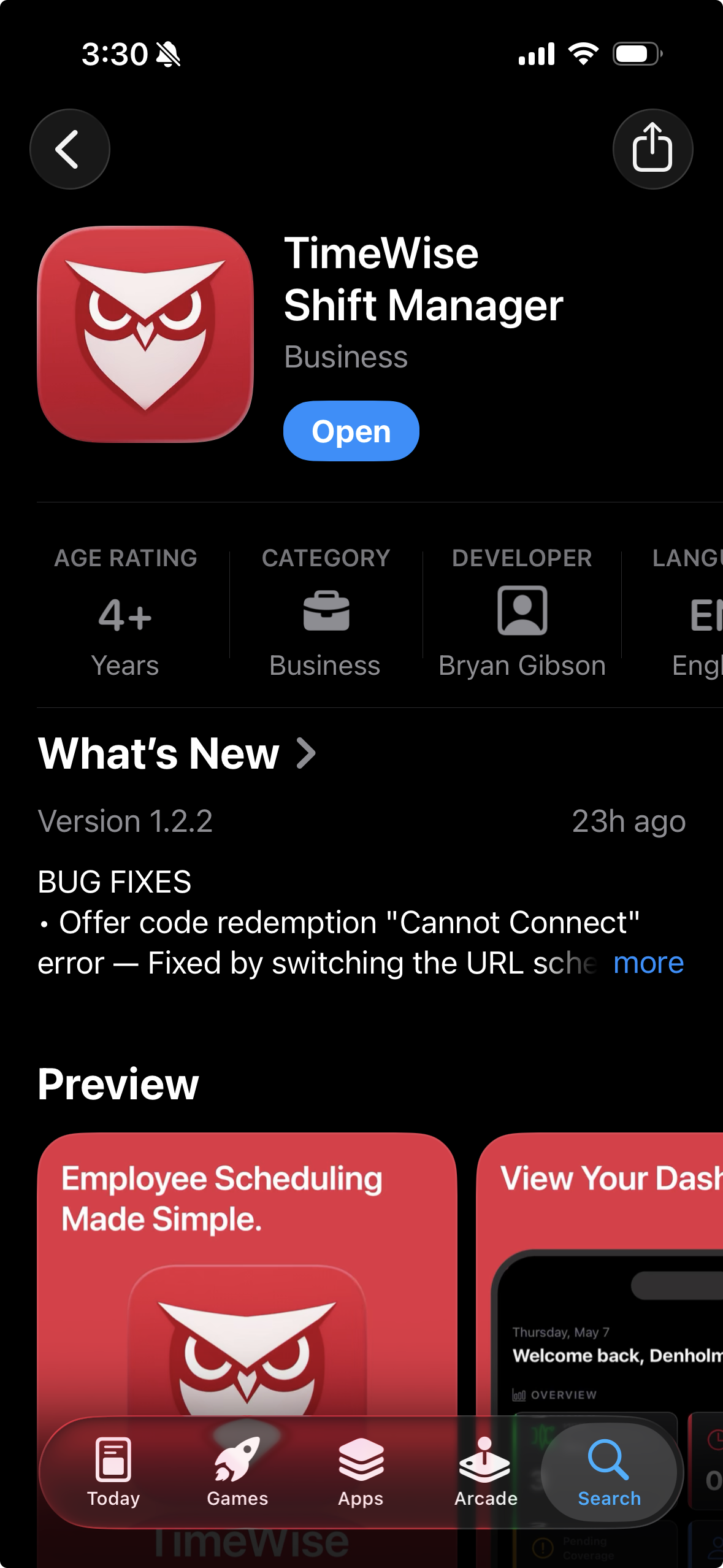
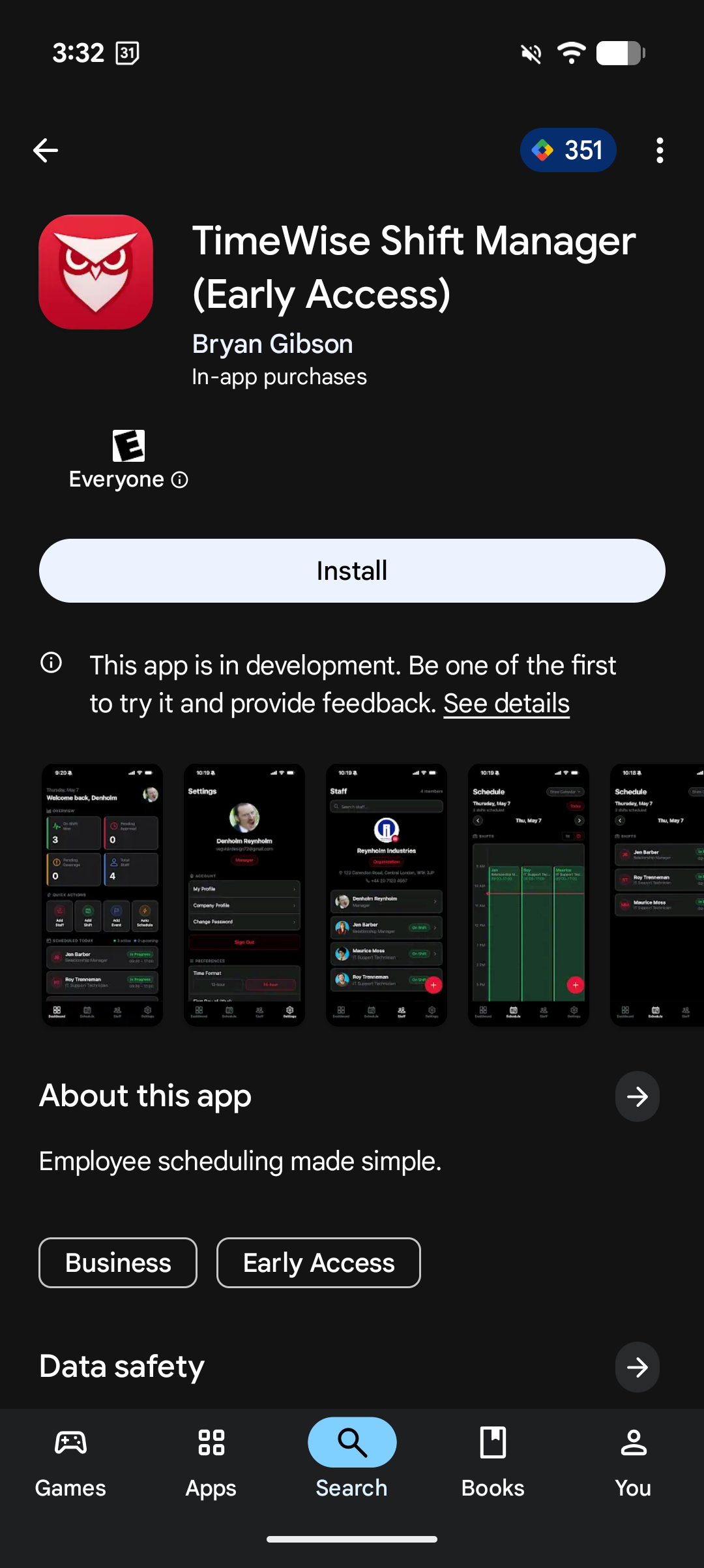
Open the App Store (iPhone) or Google Play (Android) and search for TimeWise.
Tap Get or Install to download the app. Once installed, tap the TimeWise icon to open it.
Step 2 — Accept Your Invitation
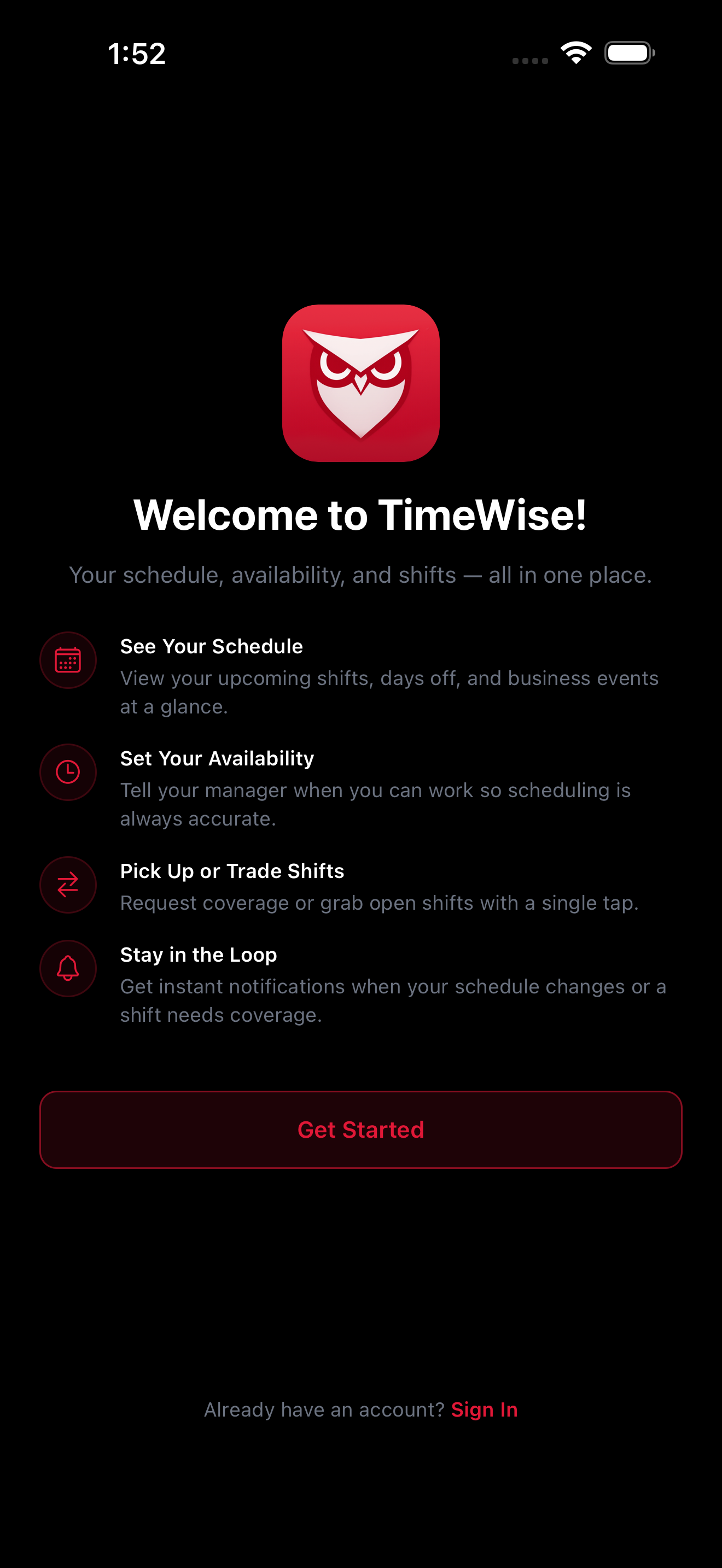
On the welcome screen, tap I'm an Employee. Your manager should have already shared a personal invite code with you via text, email, or another messaging app.
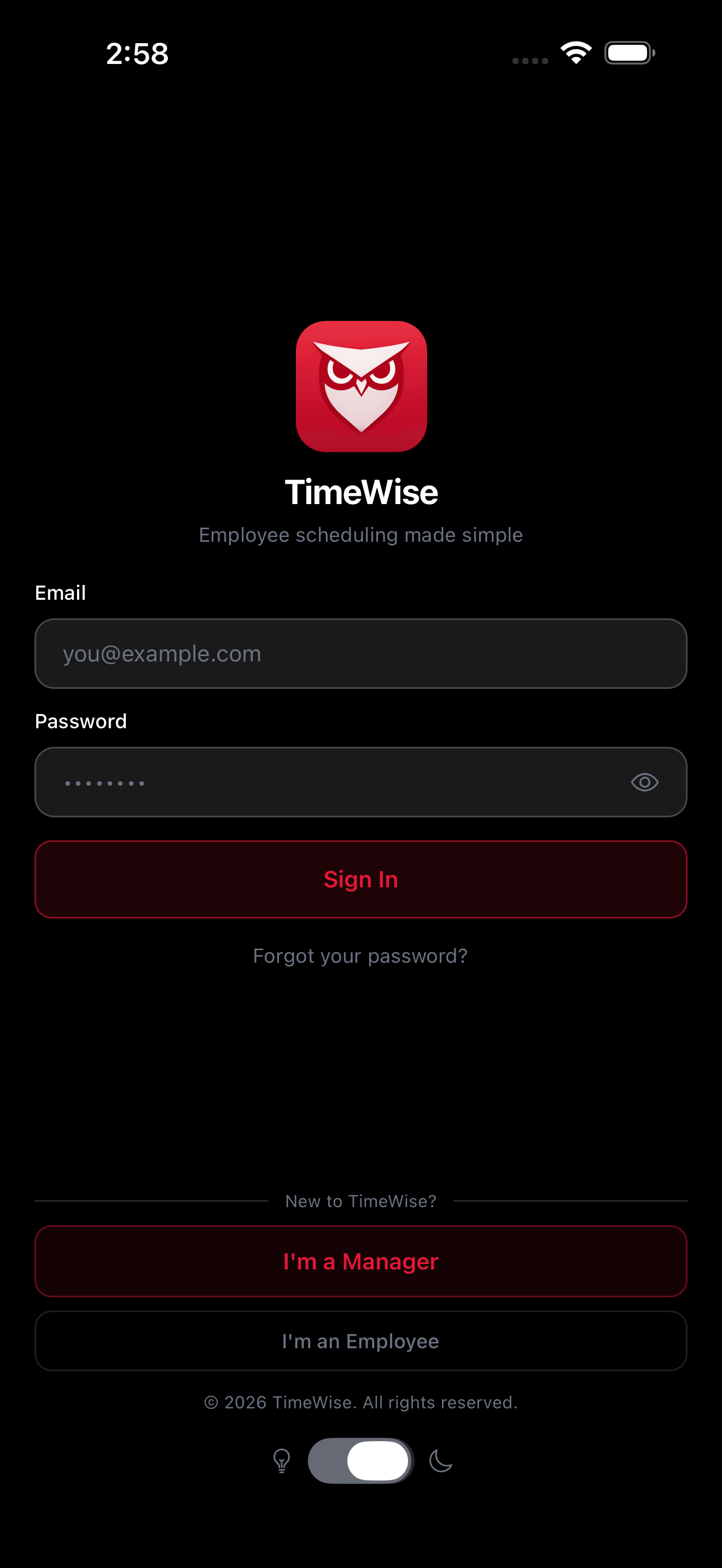
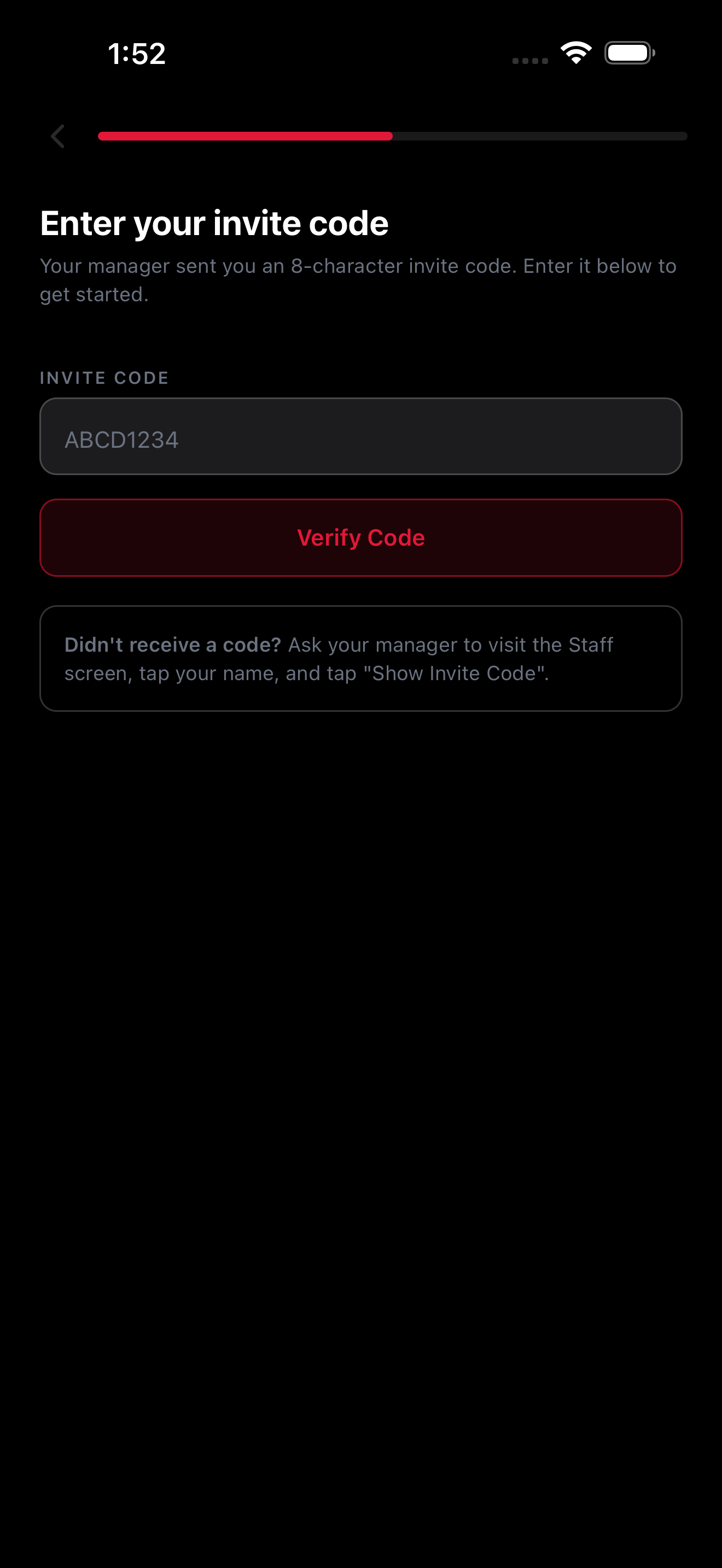
Enter the invite code exactly as provided. The code connects you to your manager's workspace automatically.
Create your account by entering an email address and password. Your account is now linked to your company's TimeWise workspace.
Step 3 — Explore Your Dashboard
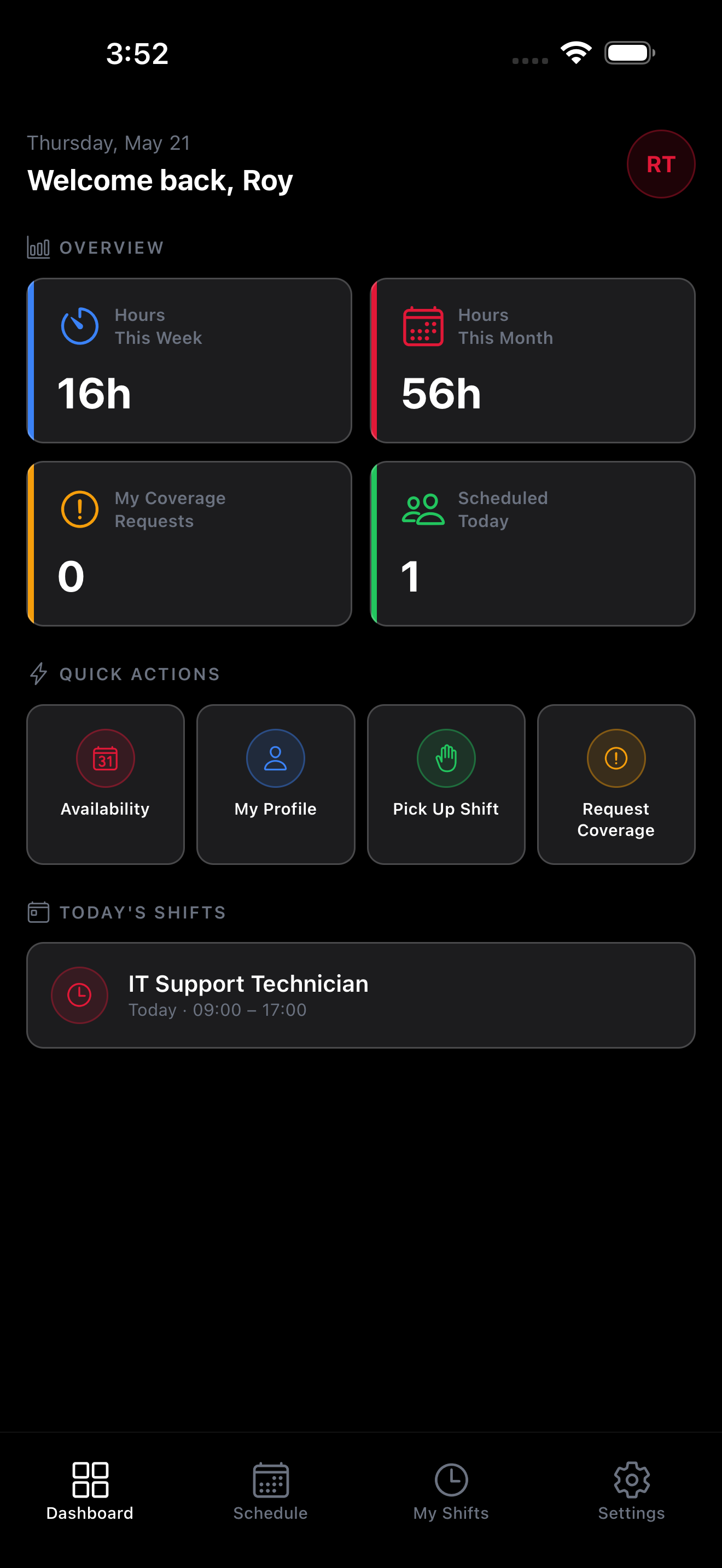
After signing in, you'll land on your Dashboard. This shows your upcoming shifts, recent notifications, and quick access to app features.
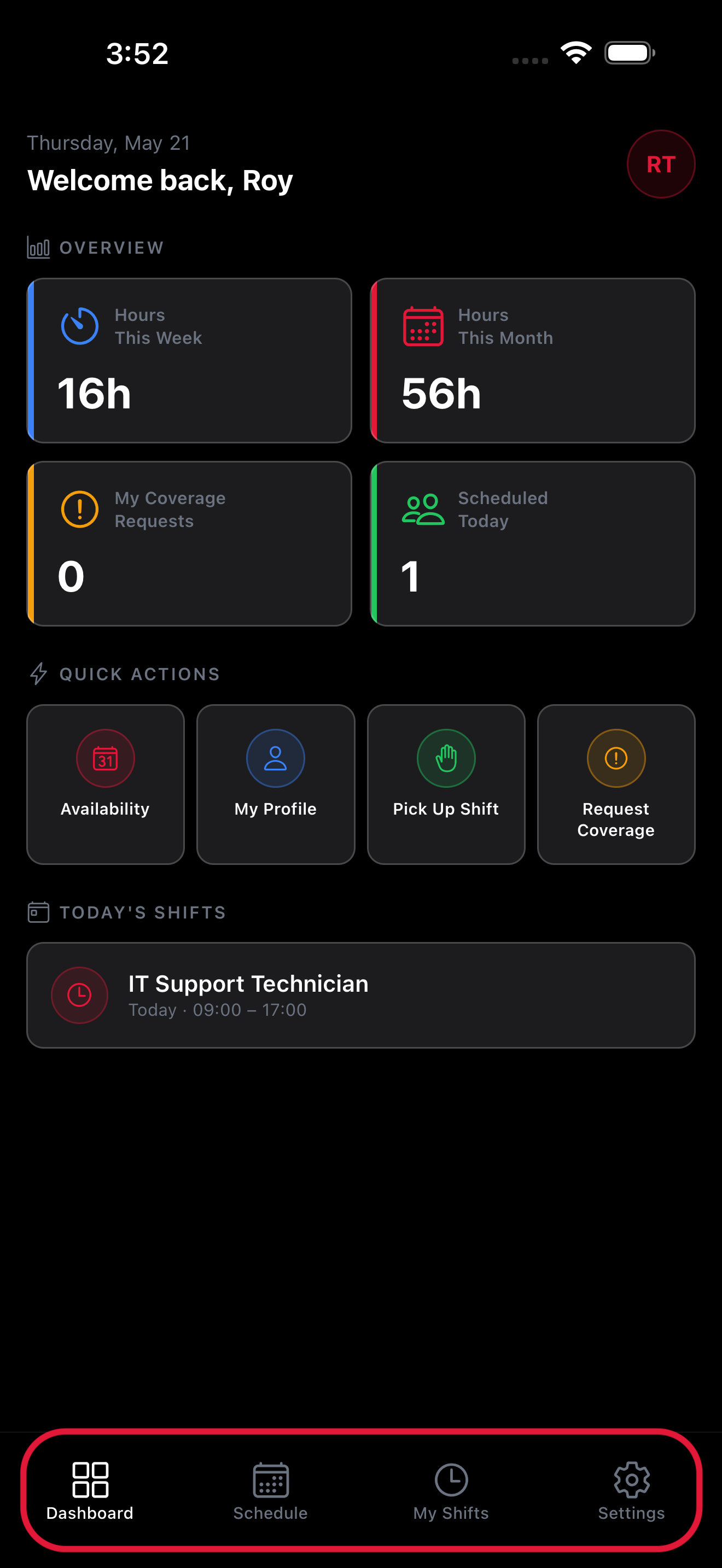
Use the bottom tab bar to navigate between your main sections: My Shifts, Schedule, and Settings.
Your schedule and shift data sync automatically from your manager's account — no manual setup needed on your end.