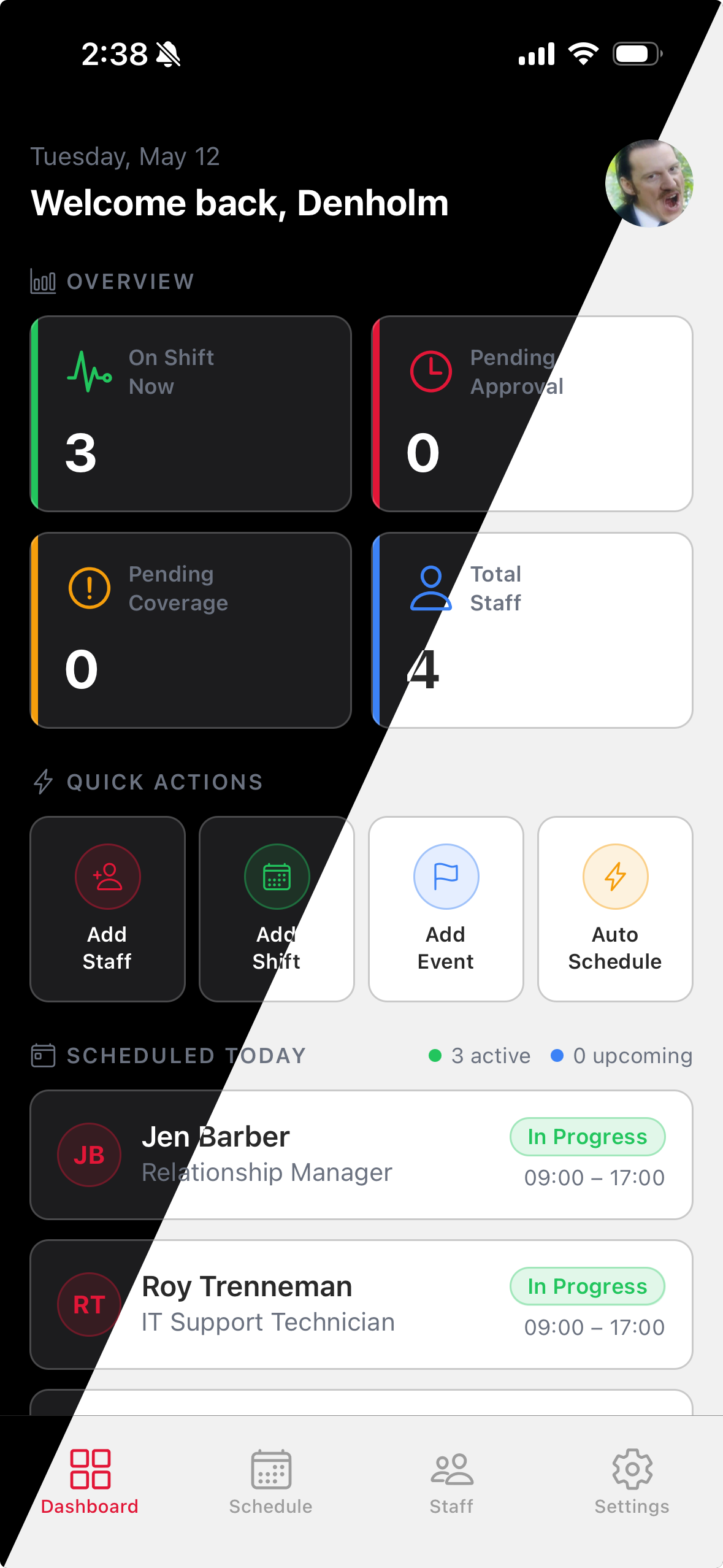
TimeWise adapts to your visual preferences. Choose a color mode that works best for your environment — whether you prefer a bright interface during the day or a darker look at night.
Open Appearance Settings
1
Tap the Settings tab at the bottom of the screen.
2
Tap Appearance from the settings list.
Choose Your Theme
1
Select Light for a bright, high-contrast interface — ideal for outdoor or well-lit environments.
2
Select Dark for a low-light-friendly interface that's easier on the eyes at night.
3
Select System to automatically match your device's current appearance setting. TimeWise will switch between light and dark as your device does.
4
Your choice is applied instantly across the entire app and saved to your account — no need to tap Save.
Tip: System mode is the recommended option. It automatically switches between light and dark as your device's scheduled appearance changes throughout the day.